Java Swing Program to demonstrate JTextField with Text
Program
import javax.swing.*;
public class JTextFieldTextDemo
{
	public static void main(String args[])
	{
		JFrame frm = new JFrame("JTextField Demo");
		JTextField txtUserName, txtPassword;
		txtUserName = new JTextField("Enter Username");
		txtUserName.setBounds(0, 0, 120, 20);
		txtPassword = new JTextField("Enter Password");
		txtPassword.setBounds(0, 20, 120, 20);
		frm.add(txtUserName);
		frm.add(txtPassword);
		frm.setSize(300, 300);
		frm.setLayout(null);
		frm.setVisible(true);
		frm.setDefaultCloseOperation(JFrame.EXIT_ON_CLOSE);
	}
}
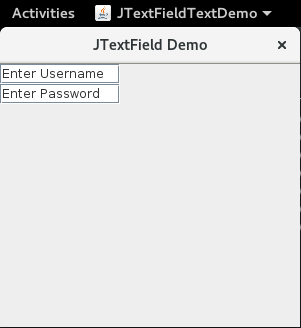
This Java Swing program demonstrates the use of the JTextField component with default text. JTextField is a Swing component that allows the user to enter a single line of text. In this program, two JTextField components are created: one for the username and one for the password, each with a default text displayed in the field when the program is first run.
-
Imports:
- The program imports
javax.swing.*to use Swing components likeJFrameandJTextField.
- The program imports
-
Creating the JFrame:
JFrame frm = new JFrame("JTextField Demo"): Creates a window (frame) titled "JTextField Demo".frm.setSize(300, 300): Sets the size of the frame to 300x300 pixels.frm.setLayout(null): Disables the default layout manager and allows for manual positioning of components inside the frame.frm.setVisible(true): Makes the frame visible when the program is run.frm.setDefaultCloseOperation(JFrame.EXIT_ON_CLOSE): Ensures that the program terminates when the window is closed.
-
Creating JTextField Components with Text:
txtUserName = new JTextField("Enter Username"): Creates a text field with the default text "Enter Username" displayed inside it when the program starts.txtPassword = new JTextField("Enter Password"): Creates a text field with the default text "Enter Password" displayed inside it when the program starts.
-
Positioning the JTextFields:
txtUserName.setBounds(0, 0, 120, 20): This sets the position and size of thetxtUserNamefield at coordinates(0, 0)with a width of 120 pixels and a height of 20 pixels.txtPassword.setBounds(0, 20, 120, 20): Sets the position of thetxtPasswordfield just below the username field at coordinates(0, 20).
-
Adding Components to the JFrame:
frm.add(txtUserName)andfrm.add(txtPassword): These lines add the two text fields to the frame.
-
Key Swing Methods Used:
JTextField("default text"): Creates aJTextFieldinitialized with the given default text.setBounds(x, y, width, height): Defines the position and size of the text fields within the frame.add(Component component): Adds the text fields to the frame.setVisible(true): Makes the frame visible when the program is executed.setDefaultCloseOperation(JFrame.EXIT_ON_CLOSE): Ensures that when the window is closed, the application will exit.
Output
 ADA Programming
 C Programming
 C# Programming
 C++ Programming
 F# Programming
 GO Lang
 Haskell
 Java
Java
 JavaScript
 Julia
Julia
 Kotlin
 Lua Programming
 PHP
PHP
 Python
 R Programming
 Ruby
Ruby
 Rust
Rust
 Shell Script
 Swift Programming
 Appetizer
 Breakfast
 Chutney
 Curry
Curry
 Desserts
 Jam
Jam
 Jelly
Jelly
 Main Course
 Pickle
 Salad
Salad
 Sauce
Sauce
 Side Dish
 Snack
Snack
 Soup
Soup
 Sweets
 Ashtottara Shatanamavali
 Hitopadesha
 Panchatantra
 Temple
 Logical Reasoning
 Reading Comprehension